
CC Switch for Claude Desktop and Claude Code
Claude Desktop and Claude Code use separate provider entries in CC Switch. Configure each one once.
Claude App (Claude Desktop)
Section titled “Claude App (Claude Desktop)”Open Claude Desktop in CC Switch, click the plus button, and select Custom Configuration.
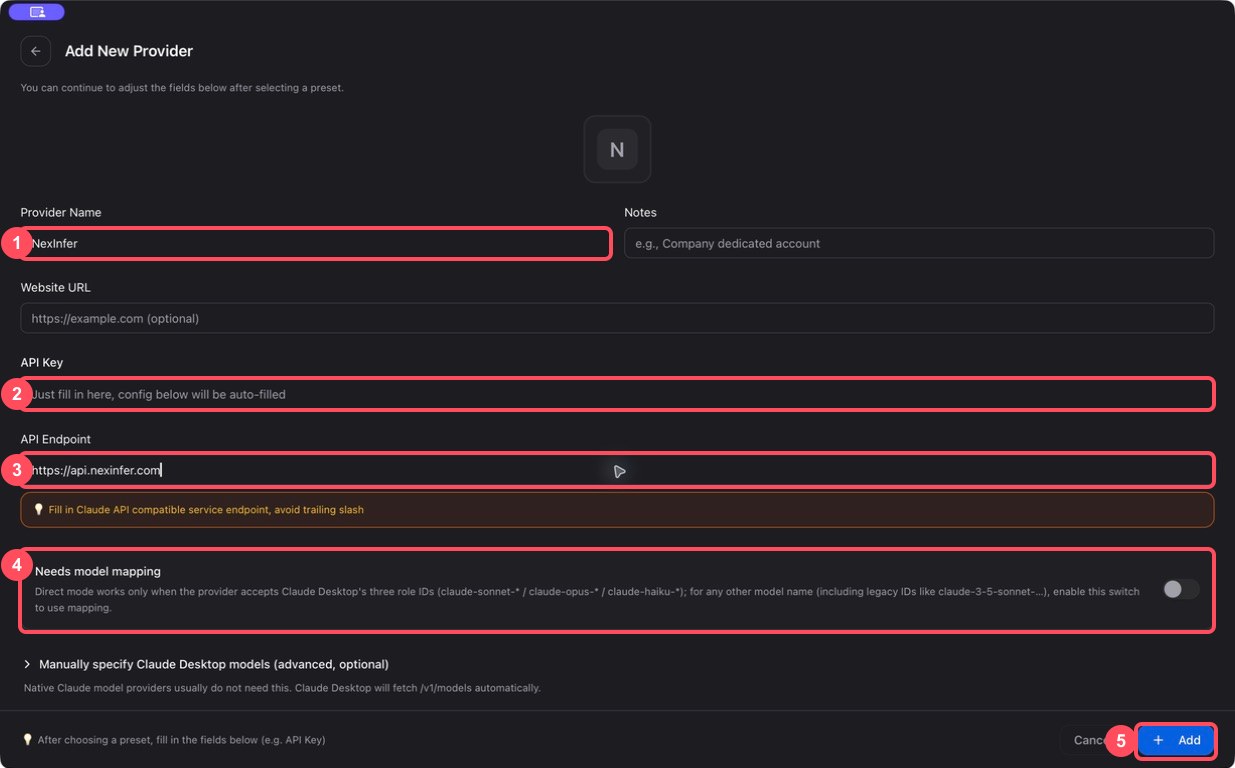
- Enter
Relyvenas the provider name. - Paste a Relyven key with access to Claude models.
- Enter
https://api.relyven.comas the API endpoint. - Leave Needs model mapping off first.
- Add and enable Relyven.
Quit Claude Desktop completely, reopen it, and start a new conversation. If you enable model mapping, keep CC Switch running while using Claude Desktop.
Claude CLI (Claude Code)
Section titled “Claude CLI (Claude Code)”Open Claude Code in CC Switch, click the plus button, and select Custom Configuration.
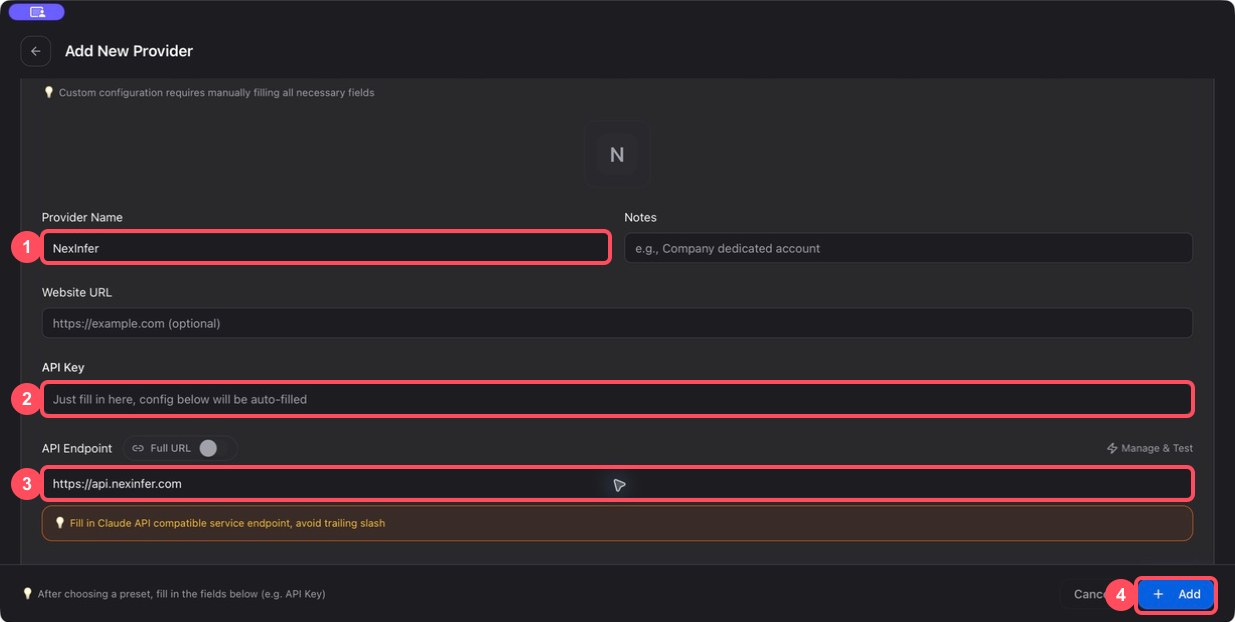
- Enter
Relyvenas the provider name. - Paste a Relyven key with access to Claude models.
- Enter
https://api.relyven.comas the API endpoint. - Add and enable Relyven.
You can launch Claude Code with the provider’s Open Terminal button. The current version supports hot switching, so start a new conversation after changing providers.
For connection or model display issues, see the CC Switch FAQ.
To configure Claude Code without CC Switch, use the direct custom API guide.