
CC Switch for Codex App and CLI
Codex App and Codex CLI share the Codex provider settings in CC Switch, so you only need to configure Relyven once.
Open Codex in CC Switch, click the plus button, and select Custom Configuration.
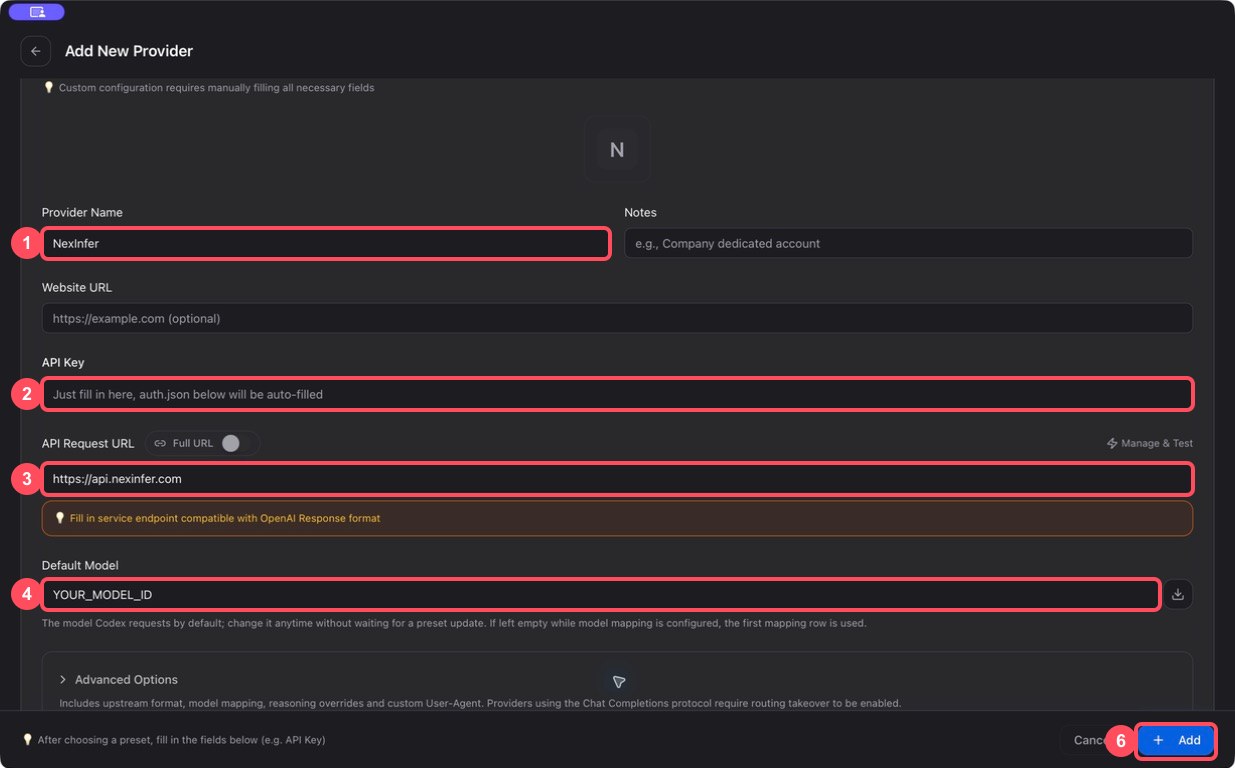
- Enter
Relyvenas the provider name. - Paste a Relyven key with access to GPT/Codex models.
- Enter
https://api.relyven.comas the API request URL. - Copy a model ID from the Relyven dashboard and enter it as the default model.
Expand Advanced Options:
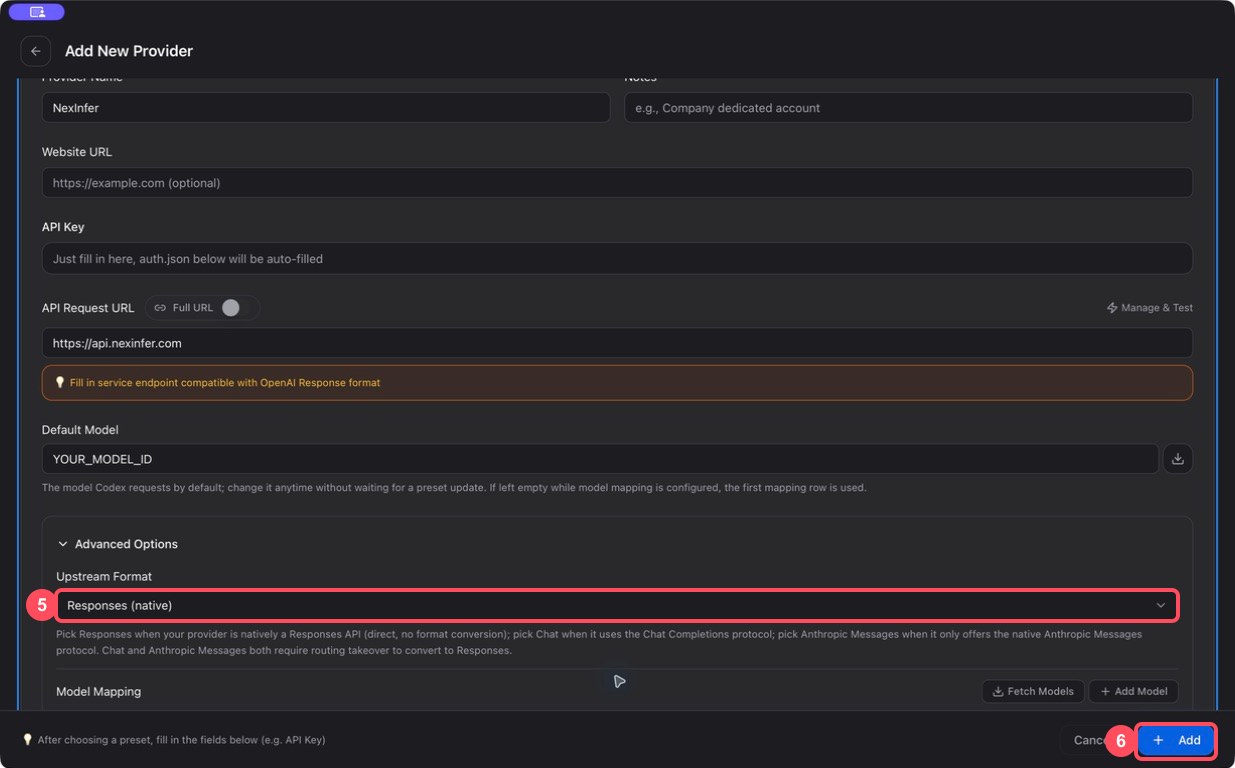
- Select Responses (native).
- Click Add, then enable Relyven.
Apply the new configuration
Section titled “Apply the new configuration”- Codex App: quit the app completely, then reopen it.
- Codex CLI: exit the current Codex session, then run
codexagain.
After reopening Codex, start a new conversation and test both a normal response and a tool call.
For connection or model display issues, see the CC Switch FAQ.
To configure Codex without CC Switch, use the direct custom provider guide.